Bookings, calendar & rooms All plans
Room types and beds, rates, the calendar, creating and changing bookings, moving guests between rooms, blocks, check-in and the folio.
Updated 2026-10-15
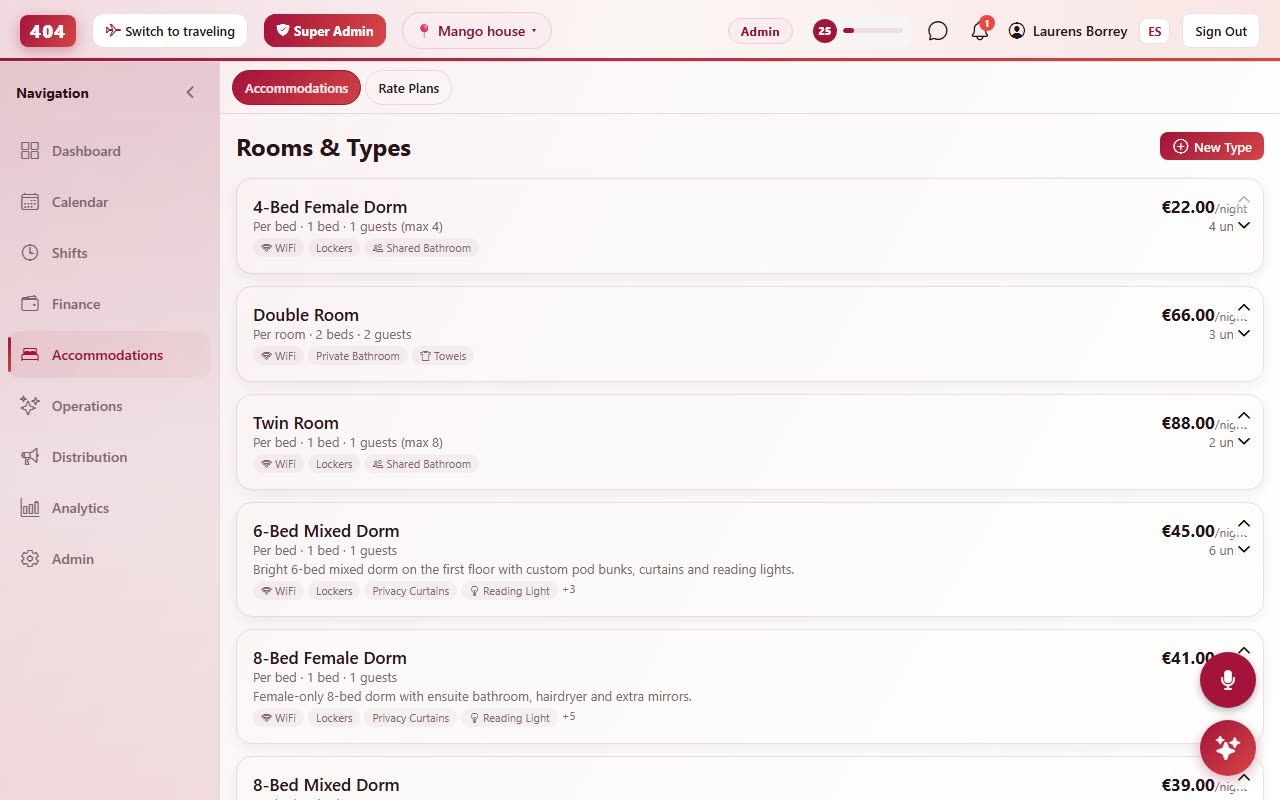
Rooms & room types
Accommodations›Rooms. A room type is what guests book (6-bed mixed dorm, private double with bathroom); a room or bed is the physical unit under it. Three pricing modes: per bed (dorms), per room (privates) and per guest (a private whose price rises with each extra person). Each type carries photos, amenities, capacity and the rate plans it sells with.
Rates, seasons and minimum stays
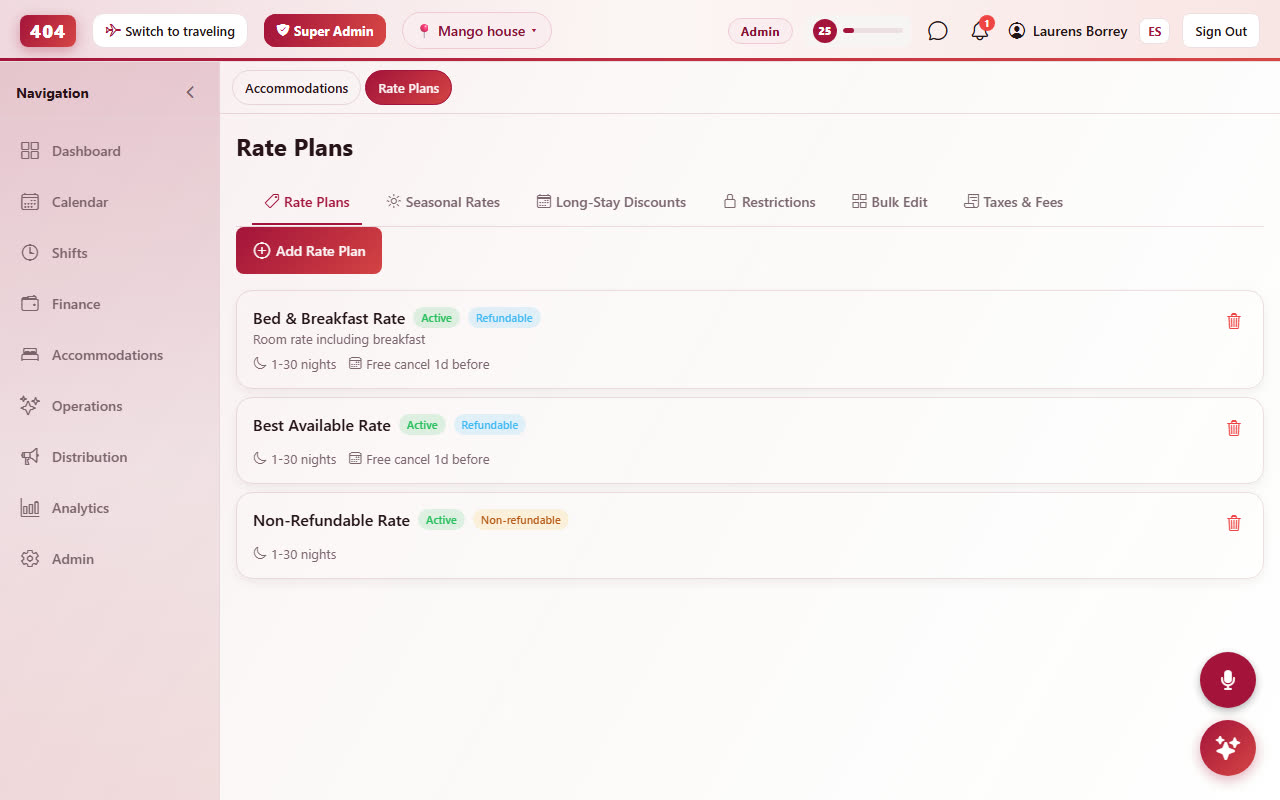
Accommodations›Rates. Start with a base price per room type and rate plan. Then:
A season can carry a minimum stay and a full-period rule (every night of the season must be in the stay). Where seasons overlap, the shortest one wins for each night. Both are enforced when the guest is quoted and when the booking is made, on the direct page and through the channels; a too-short request is refused with the season's name and the number of nights.
- Seasons: a date range with its own price and, optionally, a minimum stay. Seasons may overlap; the most specific one (the shortest date range covering the night) wins, so a 2-night rule for a single weekend beats an all-year 3-night rule.
- Per-date overrides: one night, one price, typed in the rates calendar. An override can follow the season ("yield") or be fixed.
- Discounts: length-of-stay tiers (weekly, two weeks, monthly) and a derived non-refundable plan at a percentage off.
Prices are pushed to connected channels with the same rules, including the minimum stay. Channel-specific markups (for example +25% on Airbnb) are set per channel.
The calendar
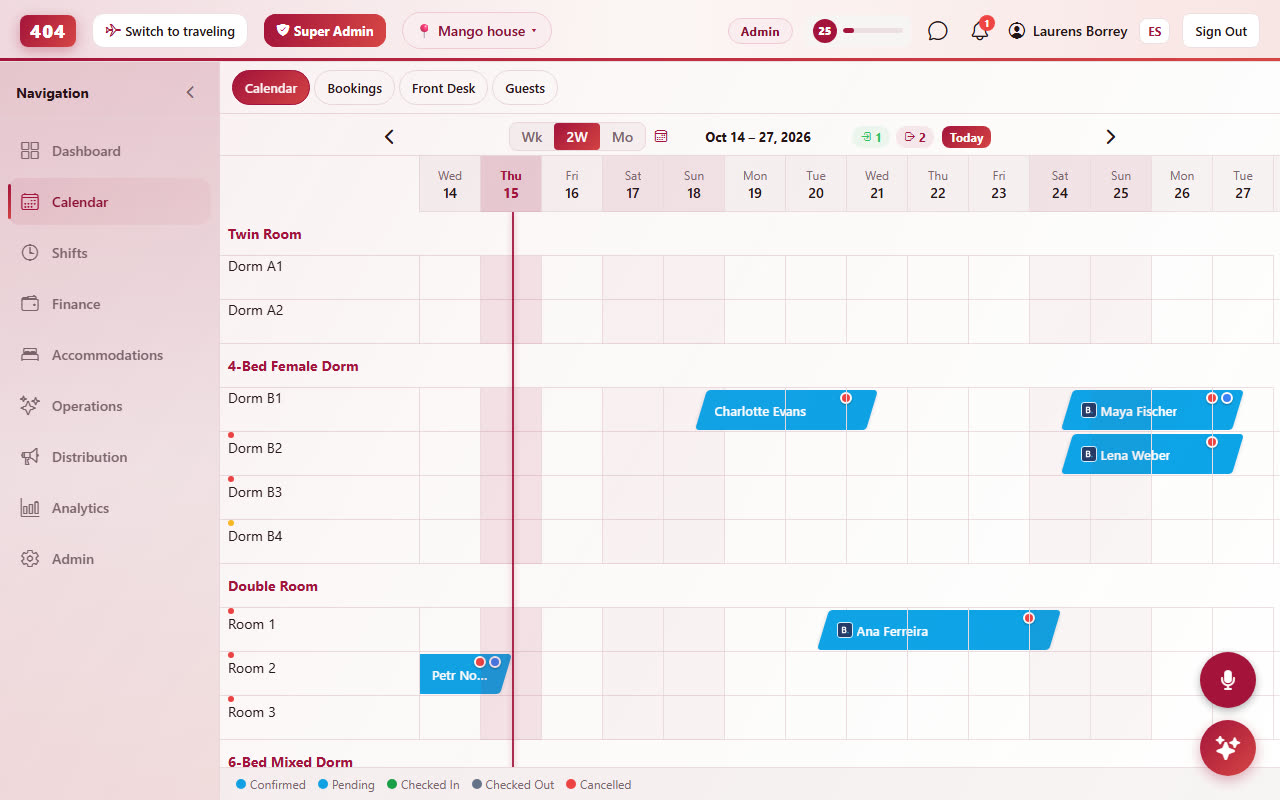
Calendar is the tape chart: rooms down the side, days across, one bar per booking. Week, two-week and month views; the calendar icon next to the date range jumps to any date. Drag a bar to move a booking, drag its edge to extend it, click it to open the booking. Grey bars are room blocks, red dots are unpaid balances.
On the phone the calendar keeps its day columns readable and scrolls sideways within the week, two weeks or month you chose; the arrows under the tabs move to the previous or next range, tapping the date range jumps back to today.
Creating a booking at the desk
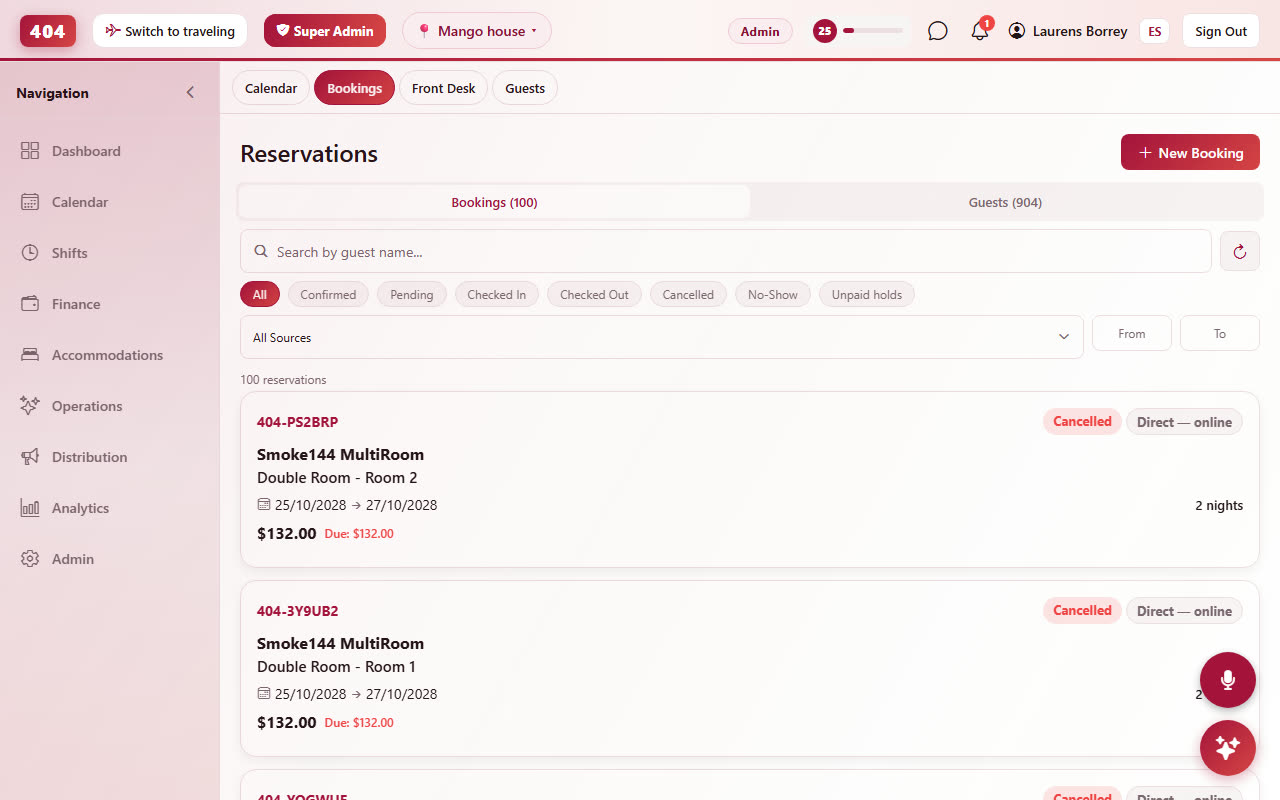
Bookings›New Booking or the + on the calendar. Pick dates (the date picker has ‹ › arrows to move between months), guests, room type and rate plan; the price is quoted live, and you can type an agreed total instead. The form asks the same custom questions as your booking page, offers a split stay (change room mid-stay) and can skip the confirmation email.
Inside a booking
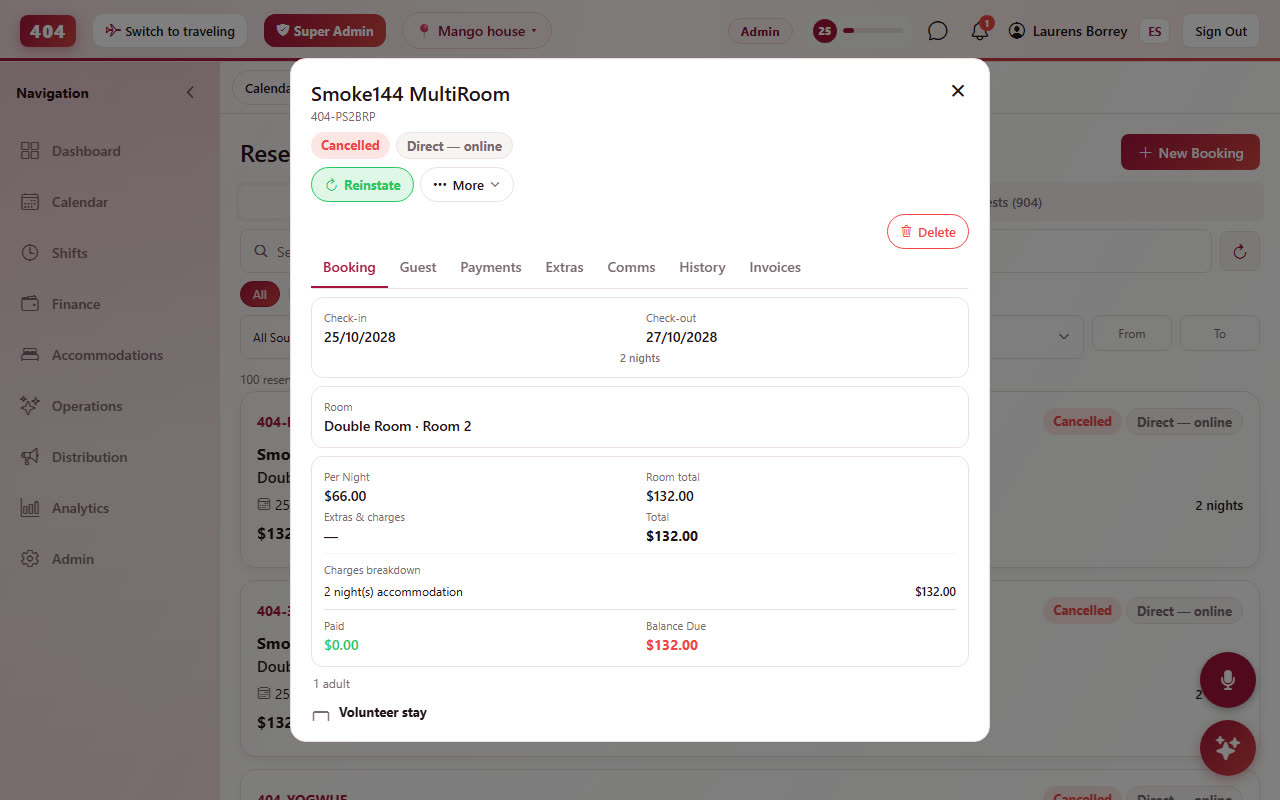
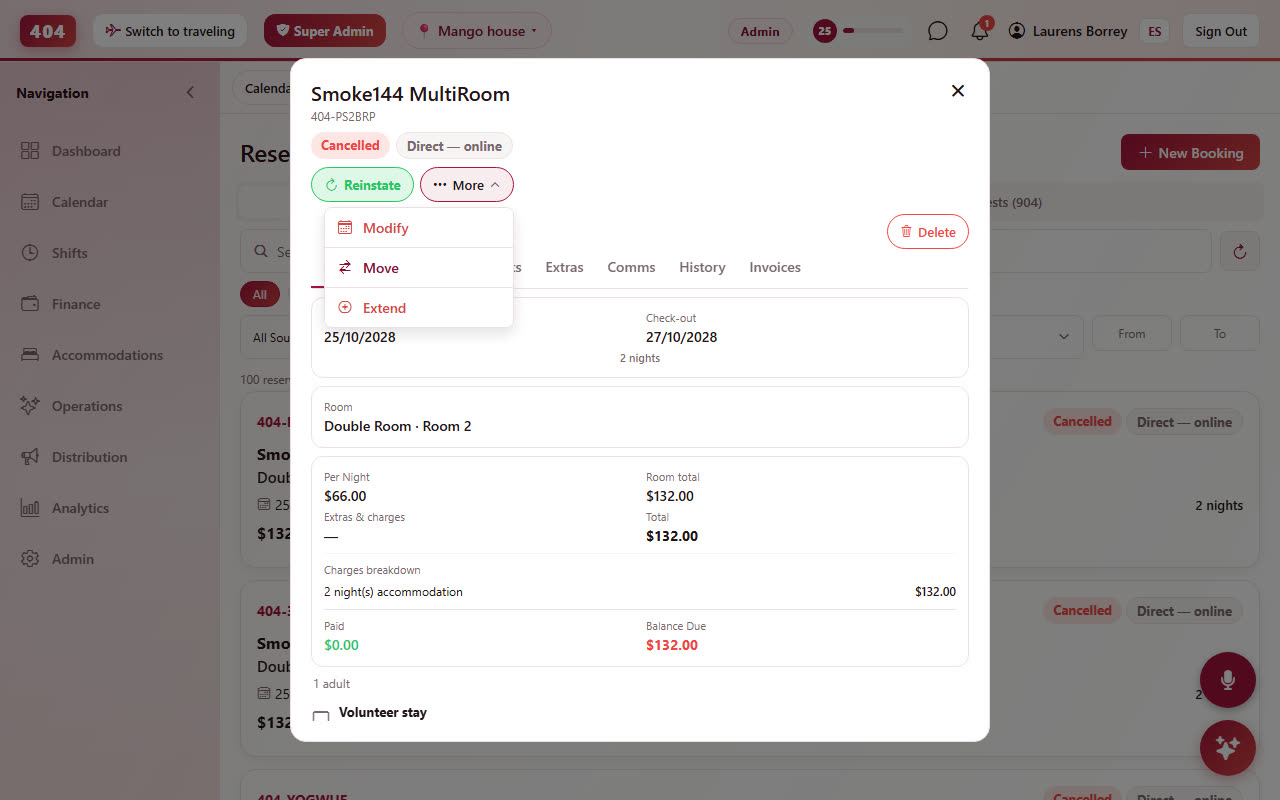
Click any booking to open it: Booking (dates, room, price, rate breakdown), Guest (details, companions, custom answers, check-in form), Payments (folio, record a payment, refunds), Extras, Comms (every email sent), History (every change, who made it, when) and Invoices. The More menu holds Modify, Move, Extend, No-show and Cancel.
Changing dates
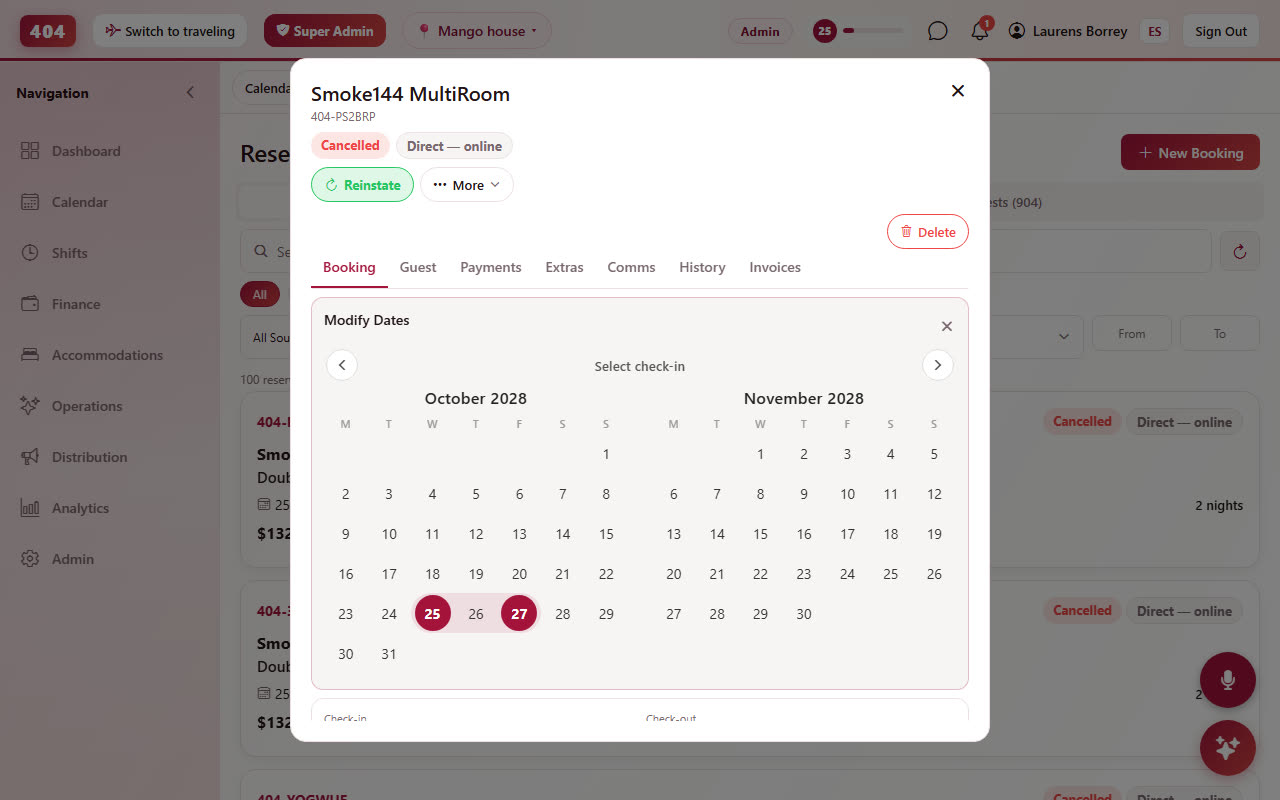
More›Modify opens a calendar on the booking. Tap the new check-in, then the new check-out. Tapping a day before the current check-in moves the arrival and keeps the check-out, so "one day earlier" is a single tap. A price preview appears at once with three ways to confirm:
- Keep current rate: the guest's agreed price per night continues onto added nights; removed nights come off in proportion.
- Apply new price: added nights at today's rate (seasons and long-stay tiers applied); the nights already booked never reprice.
- Set your own total: type the amount you agreed for the whole stay.
A better long-stay tier earned by the extension (for example crossing into the monthly discount) applies to the whole stay. A booking entered at an agreed price that already qualified for that tier is never re-discounted.
Moving a guest to another room
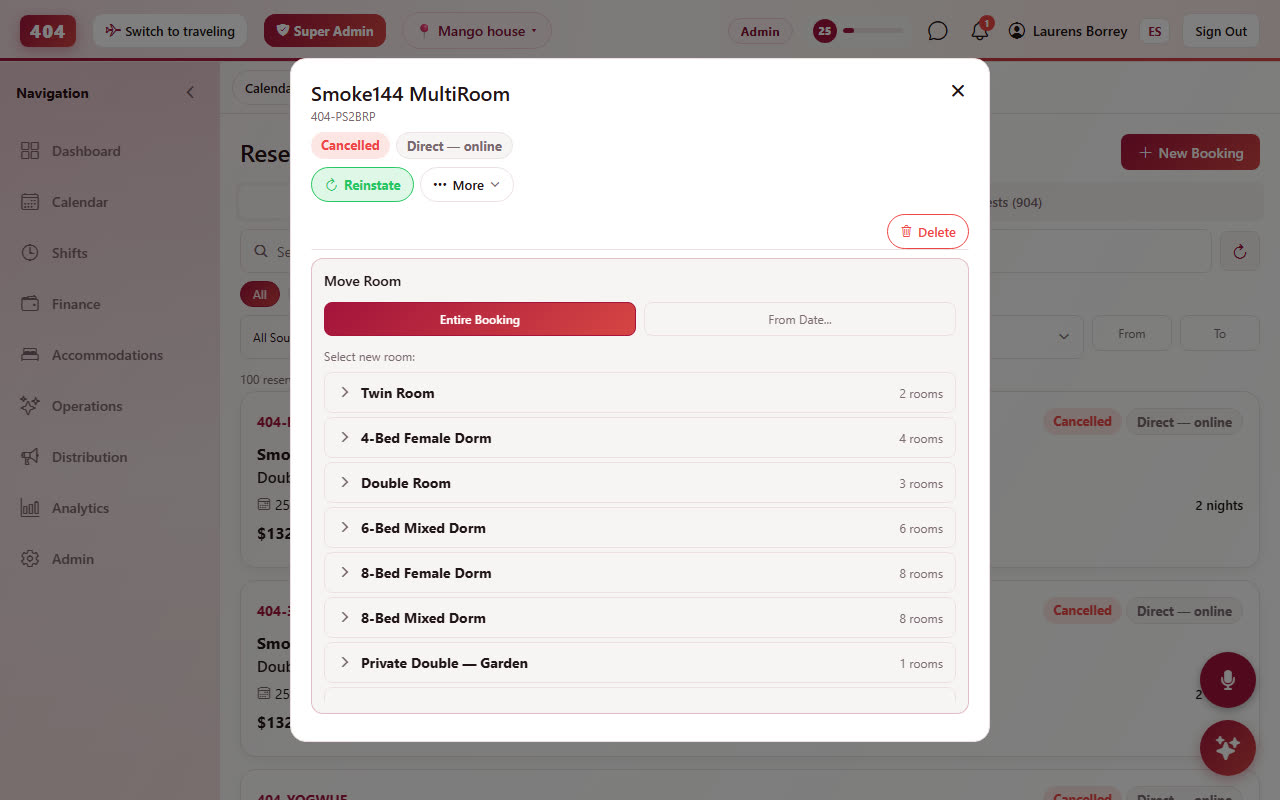
More›Move. Entire booking moves every night; the app refuses a room that is already taken on any of the dates and says so. From date… moves part of the stay: pick the first night in the new room and, optionally, the last one, so a guest can start in one room and move later, or spend only the first weeks elsewhere. Each part keeps its own price; moving to a different room type asks whether to keep the agreed rate or apply the new room's price.
Without a mouse, tap the booking on the calendar and choose Move booking in the popup: it opens the booking on its Move step (room, from and until dates). Dragging also works on touch screens: press and hold the bar for about a second and a half, then drag.
Room blocks
Blocking a room (maintenance, a private group, closing a dorm) is done from the calendar: select the room and dates, give the block a label. Blocks take the room off the booking page and the channels like a booking would, and never appear in the guest list. Editing a block shows From and Until dates one under the other.
Arrival, check-in and the online form
Front desk lists today's arrivals and departures. Every booking has a registration link (Guest tab) you can send before arrival: the guest fills in name, nationality, passport, date of birth, phone, arrival time, your custom questions and house-rules consent, in English or Spanish. Companions on the booking get their own card and count as a stay for them too. Check In on the booking marks the guest in house; Check Out closes the stay.
Tapping a card on Front Desk opens that booking's detail, the same one you reach from the Bookings list.
Folio, payments and balance
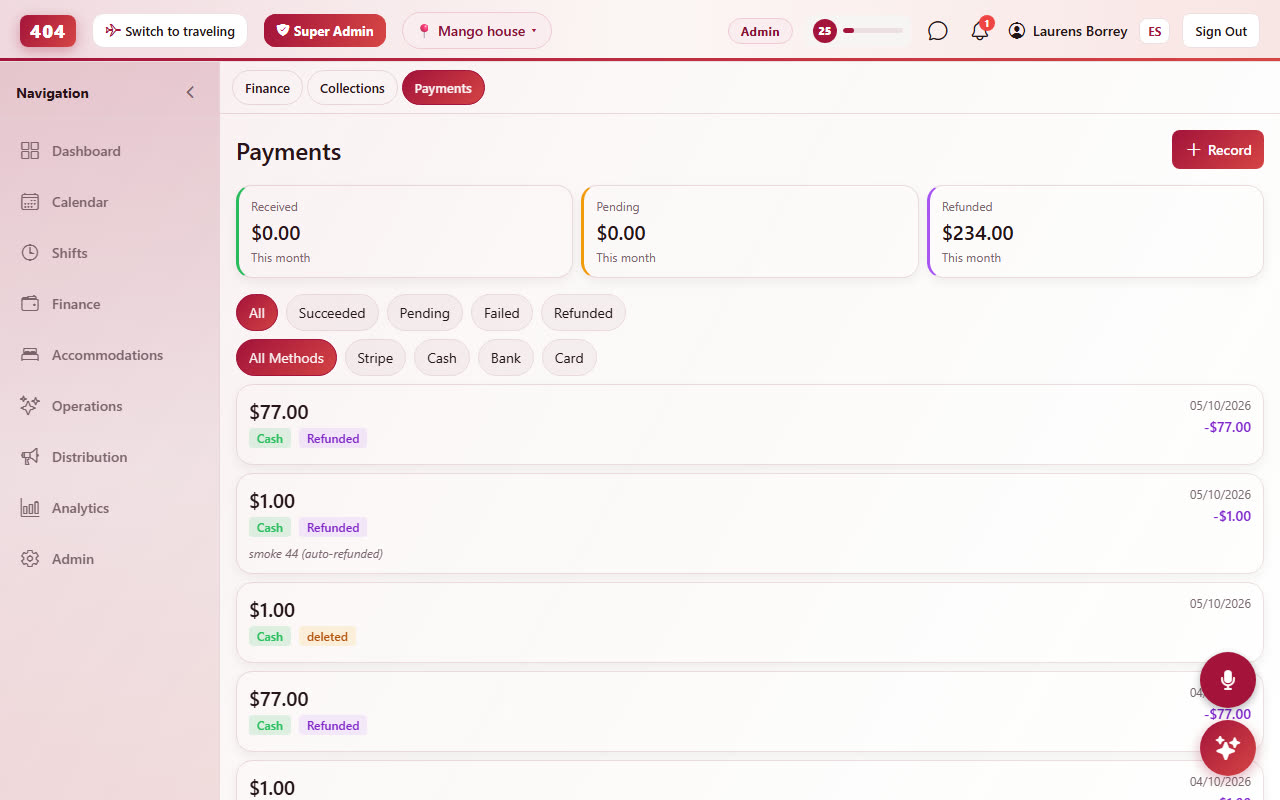
The Payments tab is the folio: room charges, extras, discounts, taxes, every payment and refund, and the balance due. Record cash, card or transfer payments here; online deposits land automatically. The booking total always follows the folio, so a price edit, an extra or a refund changes the balance immediately. Open balances show on the calendar (red dot) and under Collections.
Cancel, no-show, history
Cancel asks for a reason and applies the cancellation policy to the folio; No-show marks a guest who never arrived. Every action on a booking, by staff or by the guest (online check-in, payment, date change), is written to the History tab with the time and the person, so a question "who changed this?" has an answer.