Schedule & shifts
How Travel404 plans who is supposed to work, and tracks what actually happens during their shift — including the money that moves through every cash register, card, or bank account a property uses.
Two related concepts
The app deliberately separates the plan from the reality:
Schedule
Who is supposed to work, when. The weekly plan. Lives on the Schedule page.
Shifts
Actual clock-in / clock-out, plus every transaction that happens during the work block. Lives on the Shifts page.
A person doesn't have to be scheduled to start a shift — and being scheduled doesn't automatically clock them in. The two pages are connected (the Schedule page can show scheduled activities alongside shifts) but they hold different information.
The weekly schedule
The Schedule page is where managers plan the week. Each property defines its own shift blocks once (for example, Morning Shift and Afternoon Shift, each with their own start and end time) and then assigns specific staff to specific days.
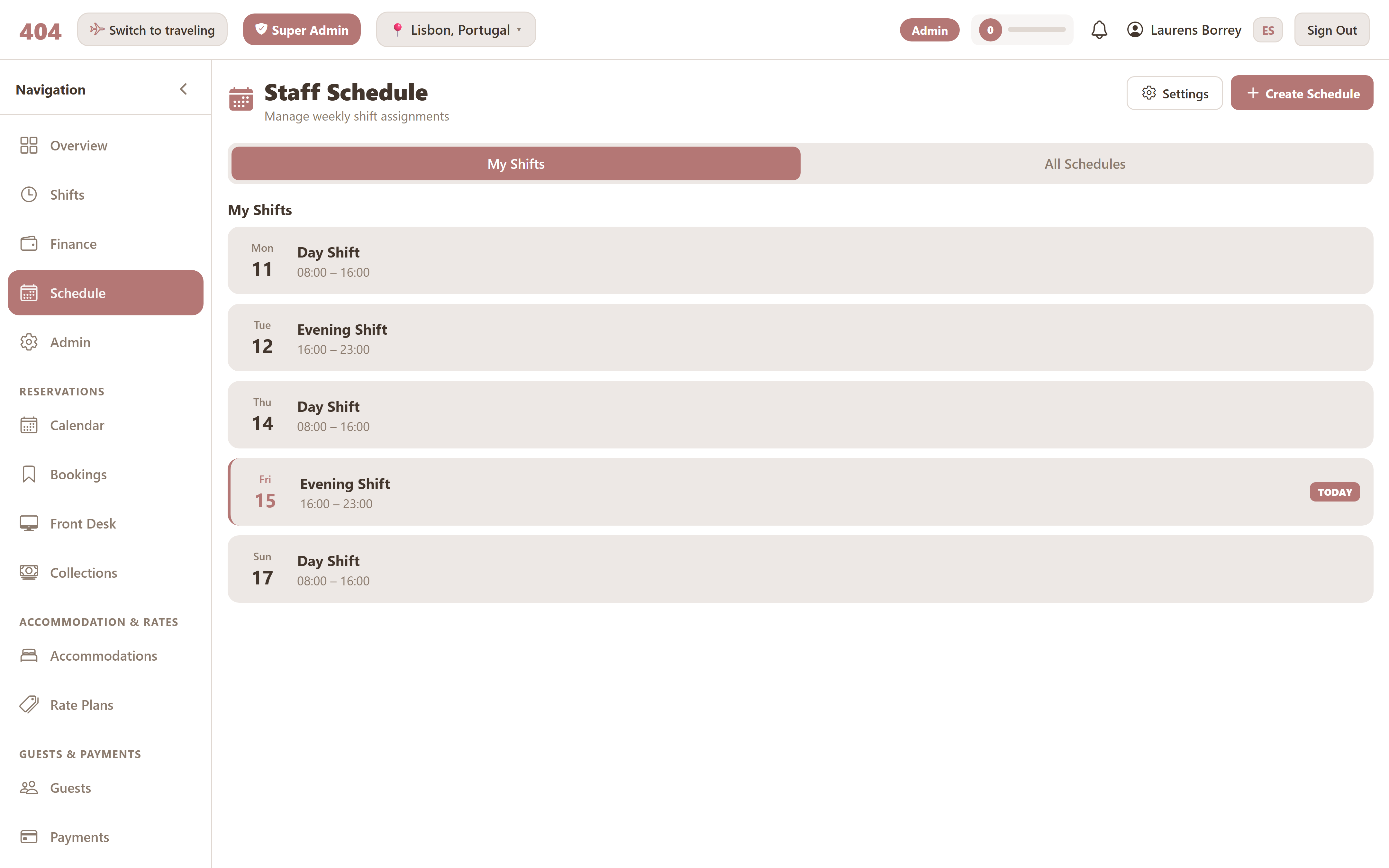
Building the week
- Shift template defines the recurring blocks (Morning 08:00–14:00, Afternoon 14:00–20:00, etc.). Set it once per property in Schedule settings; the week grid is generated from it.
- Assignments are made by clicking a slot and choosing a staff member. The list of choosable users comes from the people with permission to start a shift.
- Status of a weekly schedule is either Draft or Published. Drafts don't notify staff; publishing makes the week visible to everyone with View Schedule.
- View modes: Calendar (default) and Table. Each schedule card can be flipped between them; useful for screen size.
Header stats
Each published week shows three numbers in the header: shifts filled / total slots, unique volunteers, and activities that fall in the week. They're a quick at-a-glance check before publishing.
Shifts (the live work block)
Independent of the plan, anyone with the Start Shifts permission can clock in. Once a shift is active:
- Every transaction the user records (income or expense) is attached to that shift.
- Their cash drawer count starts from the shift's opening balance.
- They can transfer money between sources, and those transfers are also attached to the shift.
- One active shift per user at a time — they have to end the current one before starting another.
Cash drawer reconciliation
When a shift ends, the user counts the money source they were working from and the system computes the discrepancy.
Expected = opening balance + cash income − cash expense + transfers in − transfers out.
Counted = what the user physically counts at the end.
Discrepancy = counted − expected (positive means there's more than expected; negative means short).
The discrepancy is stored on the shift record with a timestamp. Managers can review past discrepancies in the Shifts history to spot patterns (one money source consistently short, one staff member consistently long, etc.).
Transfers in a shift
During a shift, money often needs to move between sources — from a cash register to a bank deposit, between two cards, from a mobile-money account into the cashbox. The Transfer button on the shift screen handles this; it records both sides of the move in one action, so balances stay consistent.
The transfer list inside the shift only appears if the user has the Create/Edit Transfers permission — without it, the section comes back empty even after a transfer is made. See the Finance permissions for the full picture.
Activities on the schedule
Activities created in the guest community app appear on the weekly schedule next to the shift assignments — so the team can see the full picture of "what's planned and who's running it" in one view.
History & reports
Every shift is kept indefinitely once ended. From the Shifts page:
- My Shifts tab shows the user's own history.
- All Schedules tab shows past weekly schedules — useful for understanding "what was the plan that week" months later.
- Audit log on each shift records every edit made after-the-fact, with the user and timestamp.