Booking engine All plans
Your commission-free booking page: where the link is, what guests see, coupons, long-stay prices, deposits, your own questions, and the confirmation they get.
Updated 2026-10-15
Your booking link, QR and website widget
Everything lives under Distribution›Booking Engine.
- Overview tab: the booking link (
travel404.com/book/your-property) with a copy button, and a QR code you can print. - Features tab: the embed code for your own website. Paste it where you want the booking page; it loads inside your site and keeps your domain.
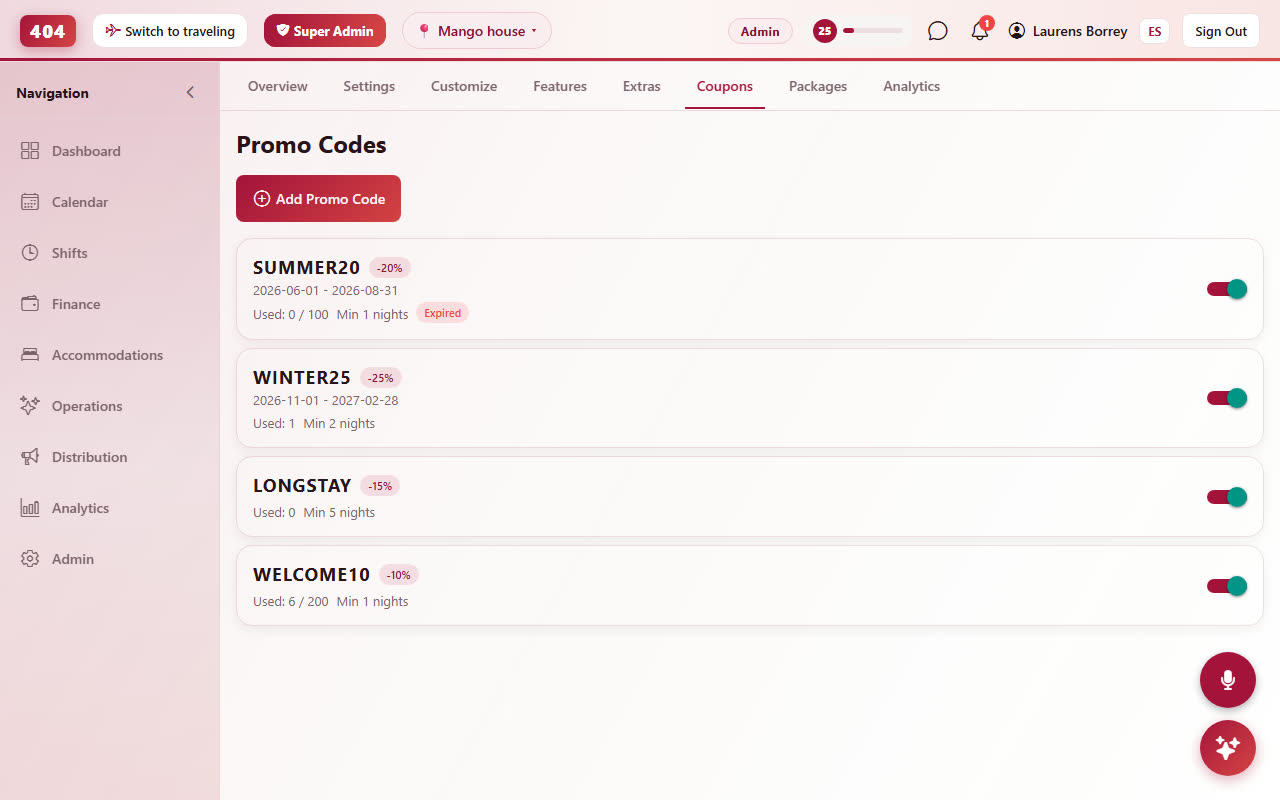
- Coupons tab: discount codes. Packages tab: retreats and bundles with their own landing pages.
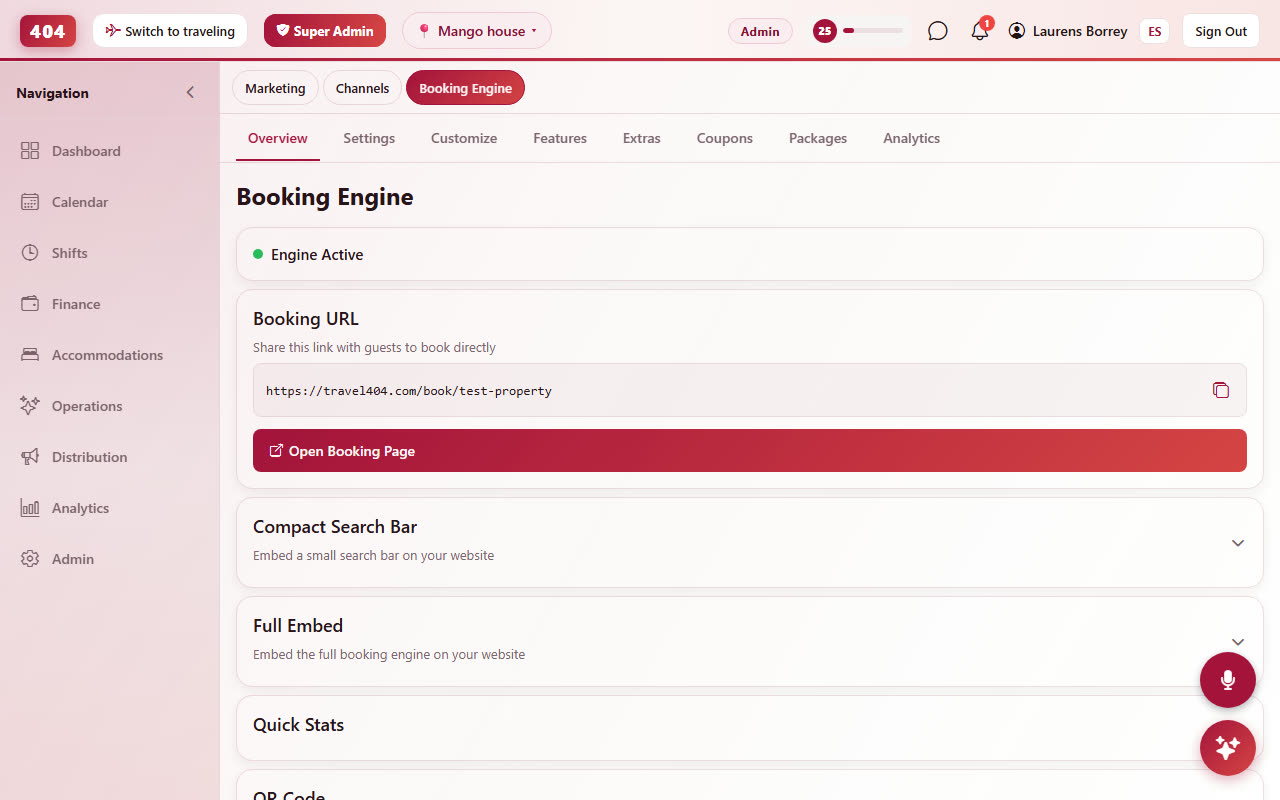
If the Distribution item in your sidebar shows a lock, it is the Marketing tab that is locked, not the booking engine. Click through: Booking Engine opens on every plan.
Look & branding
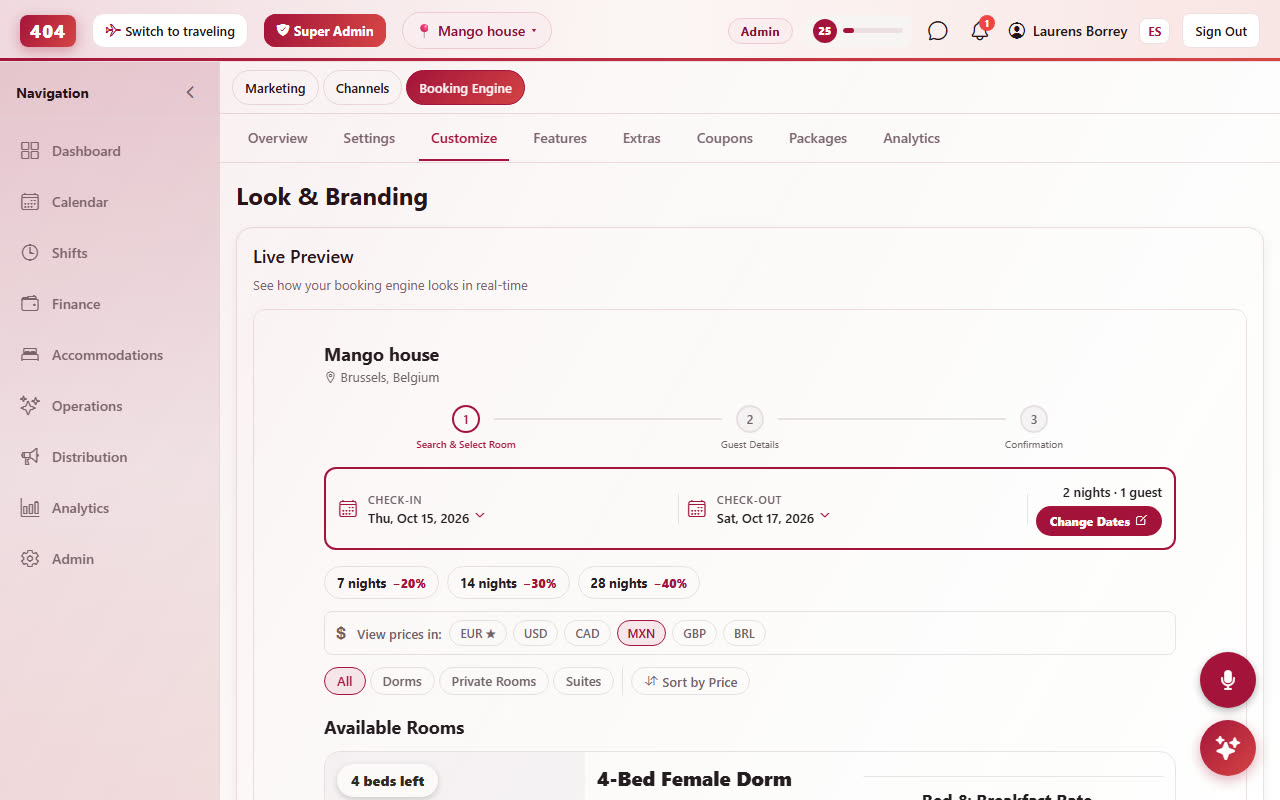
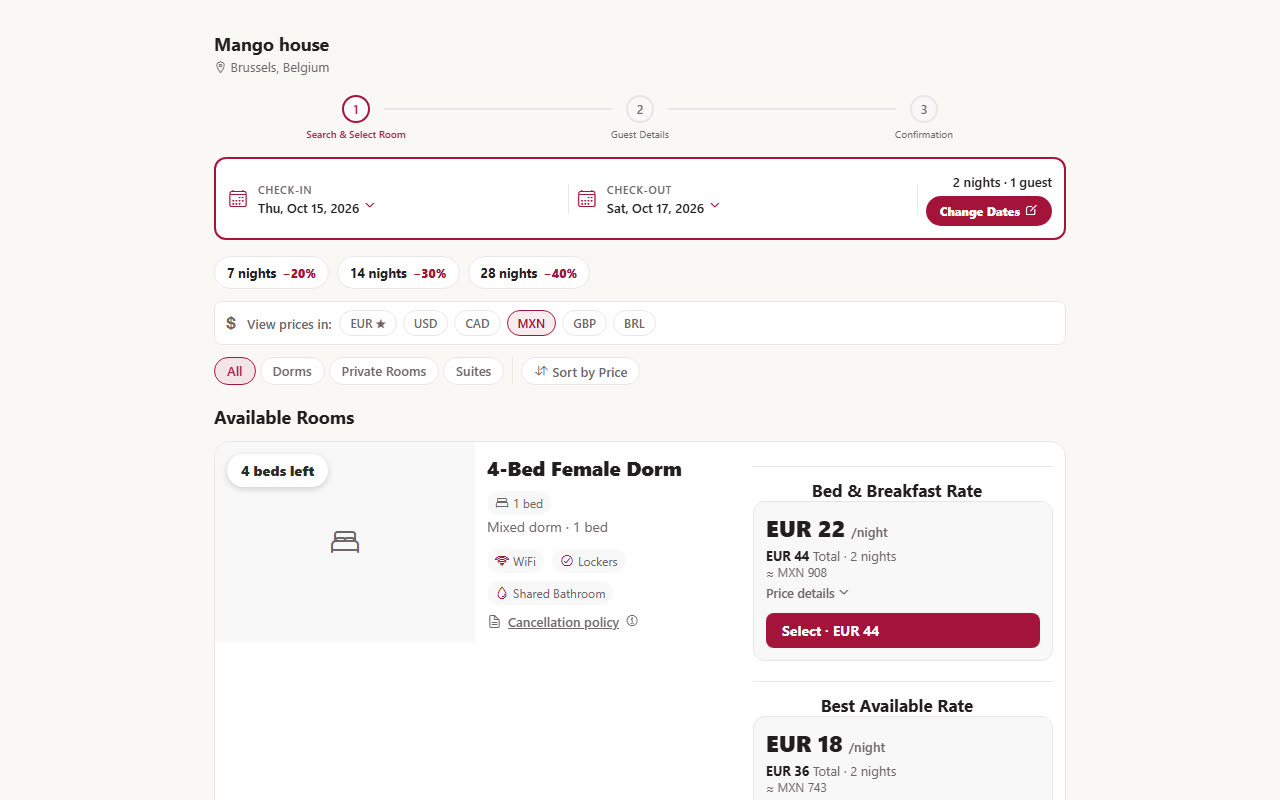
Booking Engine›Look & Branding: logo, cover photo, colours, font, headline, gallery, social proof, map and the WhatsApp button. A logo with a transparent background should be uploaded as a PNG; it is kept as a PNG so it does not land on a black square.
Settings history and restore
Booking Engine›Settings ends with Settings history: every save of the booking-page settings keeps the previous version (colours, custom questions, deposit, texts), with who saved and when. If something went missing, press Restore on the version that still had it; the version you replace is kept too, so a restore can be undone. The screen also refuses to save when it could not load your settings, so a page that failed to load can never overwrite them with defaults. And a save that would remove all your custom questions is refused unless you deleted them yourself, one by one.
The guest form and your own questions
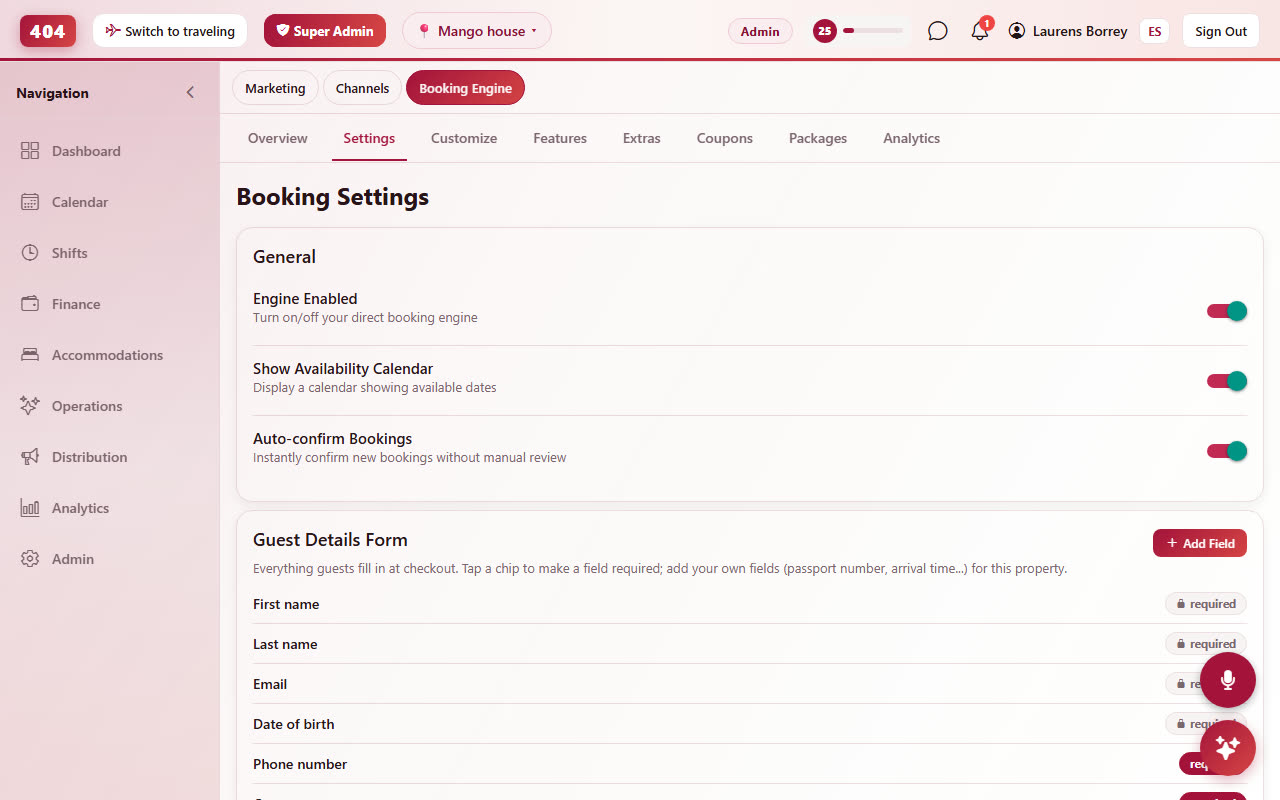
Guests give name, email, phone, country and date of birth. Under Booking Engine›Booking Settings›Guest details form you can make phone and country mandatory and add your own questions (text, choice or tick box, optional or required). Answers are stored on the booking and shown on its Guest tab; a booking made at the front desk is asked the same questions in the New Booking form and again in the online check-in link.
The phone code is pre-selected from the guest's country and the pickers open next to the field, also when the page is embedded in your website.
Coupons and long-stay prices
Coupons (Booking Engine›Coupons) are codes a guest types at checkout: a percentage or an amount, with a validity window and an optional usage limit. Gift cards work the same way.
Length-of-stay discounts are set in Accommodations›Rates›Discounts: for example 7+ nights 10%, 14+ nights 15%, 29+ nights 30%. The booking page shows the discounted price per night and the nights needed for the next tier.
Split your stay
When a room is free for only part of the requested dates, its card says so and offers Split your stay: the guest keeps that room for the nights it is free and picks another room for the rest, in one booking and one payment. The minimum stay and the long-stay discount are judged on the whole stay, not on each part, so a four-night leg of a 30-night stay is never refused by a 7-night minimum.
Deposits, holds and payment
Choose in Booking Settings whether a booking needs a deposit, a percentage or the full amount. With a deposit, the room is held for 5 minutes while the guest pays; the screen says "your room is being held" and counts down. If the payment does not arrive the hold is released and the room is free again. Online payments go through Stripe or Bold (Colombia) and land on the booking's folio automatically.
Confirmation screen and email
After payment the guest sees "See you soon" with the booking reference, and receives the confirmation email. Two things on that email are yours to write, under Booking Engine›Booking Settings›Booking confirmation:
- Confirmation message: shown on the confirmed screen and printed in the email above the booking details. Write it in your own voice.
- Extend-your-stay offer: a highlighted block under the booking details in the email. Leave it empty to hide it.
The email also carries your cover photo on top and your logo.
Which language the guest gets
The booking page opens in the guest's browser language (English or Spanish) and the guest can switch with the EN/ES toggle. Whatever language they finish the booking in is stored on their guest card and decides which version of your emails they receive, including companions they add. The online check-in form updates it the same way, and staff can change it on the guest card. Nobody is asked to declare a language.
For a Spanish-speaking guest, each email uses the Spanish subject and body you wrote under the template's Spanish section; whatever you left empty falls back to the English version. See Communications.
Currencies and prices on the page
Prices are set in the property currency. A guest can view them in USD, EUR, GBP and others; the page picks a likely currency from the visitor's country and shows the converted amount as an estimate. The charge is always in your currency.
Tracking and attribution Complete plan
Under Booking Engine›Analytics you can add a Google Analytics 4 id and a Google Ads conversion id. The page sends search, room view and purchase events and keeps the ad click id with the booking, so conversions are reported even when the guest finished later from another device. Marketing Performance (Complete) turns this into a funnel: searches, quotes, abandoned carts, bookings.